Deckard guide
Tasks
Task metadata
Deckard reads both formats of the Obsidian Tasks plugin, so tasks written for Obsidian keep their dates, priorities, and repeat rules. The emoji format looks like this, and the Dataview format spells the same fields out in brackets:
- [ ] Send the proposal 📅 2026-09-20 ⏳ 2026-09-18 ⏫ 🔁 every week
| Marker | Meaning |
|---|---|
| 📅 | Due date. 📆 and 🗓 also work. |
| ⏳ | Scheduled date: the day you plan to work on the task. ⌛ also works. |
| 🛫 | Start date: the task is not actionable before this day. |
| ✅ | Completion date. |
| ➕ ❌ | Created and cancelled dates. They are removed from titles and kept in the note. |
| 🔺 ⏫ 🔼 🔽 ⏬ | Priority, from highest to lowest. |
| 🔁 | Repeat rule, such as every week. |
| 🆔 ⛔ | A task’s id, and the ids of the tasks it waits for. |
- Markers are removed from task titles wherever Deckard shows them, and appear as details instead. A trailing Obsidian block id such as
^a1b2is left out of the title too. Deckard reads a marker anywhere on the line, while Tasks expects them at the end. - A 📅 date wins over a date written in the sentence. Without one, Deckard still reads
2026-09-12,Sep 12, ornext Fridayfrom the task text.Sep 12andnext Fridaycount from the day the note is about: a daily note’s date from its file name or top heading, else adate:,created:, orupdated:front-matter date, and only then when the file was last saved. A ✅ date is never taken for a due date. - Completing a task from Deckard adds ✅ with today’s date, and reopening it removes the date. Set
deckard.tasks.addDoneDatetofalseto change only the checkbox. - Completing a task with a 🔁 rule writes its next occurrence on the line above, as Tasks does, wherever the task is completed: a checkbox, the Task board, bulk edit, the task editor, or the assistant. The due date, or else the scheduled or start date, moves forward by the rule, and the other dates keep their distance from it; a rule ending in
when donecounts from today instead. The new task drops the ✅ date, the 🆔, and any block id. A repeating task’s steps come back with it, unchecked, under the new occurrence, so a routine checklist starts fresh, while the completed one keeps its checked steps; a bulk edit writes the next occurrence alone. - Deckard understands
every day,every 3 weeks,every month,every year,every weekday,every Monday,every week on Tuesday, Friday,every month on the 15th, andevery month on the last, as Obsidian Tasks writes them;every other week(or day, month, year),every other Tuesday,every 2 weeks on Monday, Thursday(weeks start on Monday, as Tasks counts them), andevery month on the second Tuesdayoron the last Friday, which Tasks reads too; andevery quarter,every 2 quarters, andevery weekend, which are Deckard’s own and which Obsidian Tasks does not read. A month with no fifth Friday is skipped byon the fifth Friday. Each can be followed bywhen done. For any other rule it completes the task, adds no next occurrence, and tells you so. - Only
[ ],[x], and[X]checkboxes are tasks, so a Tasks[-]cancelled task is not indexed.
Who a task is for
A 👤 field says who a task is for. Notes name people for all sorts of reasons — a task can be about someone without being theirs — so being asked to do something is written down rather than inferred from the sentence:
- [ ] Chase the contractor @ren-kade 👤 @dana     <!-- Dana's task; Ren is mentioned -->
- [ ] Send the proposal [assignee:: #person/ren-kade]  <!-- Ren's task -->
- [ ] Write up what @dana said                    <!-- about Dana, nobody's task -->
- [ ] Book the room                               <!-- nobody's yet -->
👤and[assignee:: …]are the same field in the two task metadata formats, and Deckard writes whichever one the line already uses.🧑is read too.- The person is named as their tag is written, so
@danain the field is the same@danathe rest of your notes and the people views already know.@danaand#person/dananame the same person, whichever way either side writes it. - Search for them with
assignee = @dana,assignee = none,is:assigned, oris:unassigned. is:minefinds what is yours: the tasks whose👤names you, oncedeckard.mesays who you are —@ren-kade, say — and the tasks for nobody in particular, which fall to whoever is reading.assignee = noneis the second kind alone.- The Task board groups by Person, a column each in alphabetical order, with Nobody named at the end — the waiting-on view. Dropping a card on a person writes the field, and dropping it on Nobody named clears it; the words of the task are never touched.
- Deckard read the first person in a task’s words as its owner before this field existed.
deckard.tasks.assigneeFromPersonTagturns that reading back on for lines that carry no👤.
Dataview format
Tasks can also be written in the plugin’s text-only Dataview format, and Deckard reads it the same way:
- [ ] Send the proposal [due:: 2026-09-20] [scheduled:: 2026-09-18] [priority:: high] [repeat:: every week]
The fields are due, scheduled, start, created, completion, cancelled, priority, repeat, id, dependsOn, and Deckard’s own assignee, in square or round brackets. Other Dataview fields, such as [owner:: Ren], stay part of the title. When Deckard writes a date, such as a completion date or a repeating task’s next dates, it uses the format the task already uses. For a task with no metadata yet, deckard.tasks.metadataFormat chooses.
Editing a whole task
One command opens the task on the cursor’s line as a list of its fields, so a whole task can be built or changed in one place rather than typed marker by marker. It goes by the name that fits where the cursor is: Deckard: Edit Task on a task line, and Deckard: Add Task anywhere else, with the same shortcut for both. On a line that is not a task yet, whatever is written on it becomes the description; on an empty line, you start from nothing.
The pick lists every field with what the task says now, headed by the line as it will be written, so the Markdown is in front of you the whole way through. Choosing a field opens its own step and comes back:
| Field | What it takes |
|---|---|
| Description | The words, tags and people included |
| Status | Open or done — completing writes the ✅ date a checkbox would, and reopening takes it away |
| Due, Scheduled, Start | A date in plain words |
| Priority | Highest to lowest, or none |
| Repeats | A common rule, or any rule you write |
| Assignee | Who the task is for — its 👤 field; see Who a task is for |
| Blocked by | The 🆔 ids of the tasks that come first |
| Add a tag | A tag from your workspace, or a new one, written at the end of the description |
Dates are written the way people write them — friday, oct 3, next week, end of month, in 3 days, 3 days ago, 2026-09-25; see Dates in plain words — and the box says which day it read and how far off it is as you type, such as Monday 2026-09-28 · in 3 days. An empty answer clears the date, and words Deckard cannot read as a day are refused rather than guessed at.
- Assignee offers the people your notes already name, or takes a new one —
danaand@danaboth read as the person. It writes the👤field and leaves the words alone, so a person the task mentions stays mentioned. Nobody takes the field off. - Nothing is written until you choose Write the task. Escape leaves the line as it was.
- The line is written in the format it already uses, or
deckard.tasks.metadataFormatfor a task with no metadata yet, and in the order Tasks writes it. - Everything Deckard does not offer to edit is kept: a
^block-idstays at the end of the line, an🏁on-completion marker stays where it was, and a➕created date is left alone. - The editor works on the line in the editor, not on the index, so an unsaved note edits like any other.
- It is also on the lightbulb: put the cursor in a task line and Edit task… is offered as a refactoring.
Breaking a task into steps
A checkbox indented under a task is one of its steps:
- [ ] Plan the offsite 📅 2026-10-09
  - [x] Book the venue
  - [ ] Draft the email
  - [ ] Send the invite
Deckard: Break into Steps… writes them for you. It is on the lightbulb beside Edit task…, in the palette and the editor’s Deckard submenu while the cursor is on a task, on a task’s right-click menu in the Tasks view, and on a Task board card’s ⋯ menu, where s does the same. Type a step and press Enter, as many as you need; the list shows the steps already written so none is typed twice, and a new step can be moved up, removed, or chosen to change its words. Write puts them under the task as - [ ] lines — after anything already under it, indented as the note already nests its lists, with the task’s own bullet — in one change that the message’s Undo and Deckard: Undo Last Change both take back. Escape writes nothing. With a VS Code language model installed, Suggest steps asks it for a list to edit first; see Suggest steps.
A step follows its list’s indentation: a heading, a code block, or an unindented paragraph ends the list, a blank line does not, and a checkbox under a plain bullet is a task of its own. is:step finds steps, and has:steps the tasks that have them.
A task with steps says how far along it is — 2 of 5 steps · next: Draft the email — on its board card, in task rows on search pages and Home, and in the Tasks view, where it opens to its steps, each with its own checkbox and menu. On the Task board and in the Tasks view a step rides on its task rather than being listed on its own, so five steps are not five cards; a step with its own date, priority, person, or tag stays listed, since it would otherwise leave Today or someone’s column, and a step whose task is done or not in the list is listed as any task is. Search pages list what they find: -is:step leaves steps out.
Completing a step from a checkbox — on the board, in the Tasks view, on a search page, on Home, or in Find — when it is the task’s last open one says so and offers Complete Task; completing a task whose steps are still open says how many and offers Complete Steps, which checks them in one change with its own Undo. Neither happens unless you choose it. Toggle Task Done, bulk edits, and the assistant complete exactly what they are given.
Typing metadata
Type / after a space in a task to pick metadata instead of typing it:
- due today, due tomorrow, due in a week, and due on a date, with the same choices for scheduled and start dates;
- the five priorities, from highest priority to lowest priority;
- common repeat rules, or repeats on a rule to write your own;
- for @dana for each person your notes name often, and for a person to write one;
- task id, and depends on each open task’s id.
Keep typing to narrow the list, as in /prio or /every. Suggestions use the format the task already uses, or deckard.tasks.metadataFormat for a task without metadata. Set deckard.tasks.metadataSuggestions to false to turn them off.
Dates in plain words
Every box that asks for a date — the task editor, a date from the Tasks view or the Task board, a bulk edit, [[ day links, and Quick capture — reads the same words, and says back the day it read before anything is written, such as Monday 2026-09-28 · in 3 days. On Friday 2026-09-25:
| Written | Means |
|---|---|
2026-10-02, 2026/10/02 |
that day |
today, tomorrow, yesterday |
as named |
in 3 days, +2w, 3 weeks, 1 month |
that far ahead; a month is a calendar month, so Jan 31 plus a month is Feb 28 |
3 days ago, 2 weeks ago |
that far back |
friday, fri, next friday, this friday |
the next Friday to come, never today: 2026-10-02 |
last friday |
the Friday before today: 2026-09-18 |
oct 3, 3 Oct, October 3rd, Oct 3, 2027 |
that day; with no year, the next one on or after today |
next week |
next week’s Monday: 2026-09-28. Next week is the one after this week as deckard.calendar.weekStart draws it |
end of week, eow |
the last day of this week: Saturday 2026-09-26, or Sunday with a Monday week start |
end of month, eom |
the last day of this month: 2026-09-30 |
next month |
the 1st of next month |
weekend, this weekend |
the coming Saturday, or today on a weekend |
A numeric date such as 10/3 is read in the order VS Code’s display language writes dates: month first in English, day first in German or French. When it is not a real day in that order but is in the other, as 25/9 in English, the other order is used. Numeric dates are read only in a box, which shows the day before it writes it, never in a search.
A search reads these too, but a week or a month there is the whole span: due = next-week is every day of next week, where next week in a date box is its Monday.
Tasks view
Open Tasks from the Deckard Activity Bar to see your open tasks, grouped by when they are wanted. Like the Outline, it can be dragged into either sidebar. Parked tasks are not listed, and not counted in the badge or the status bar, unless deckard.agenda.query says is:parked.
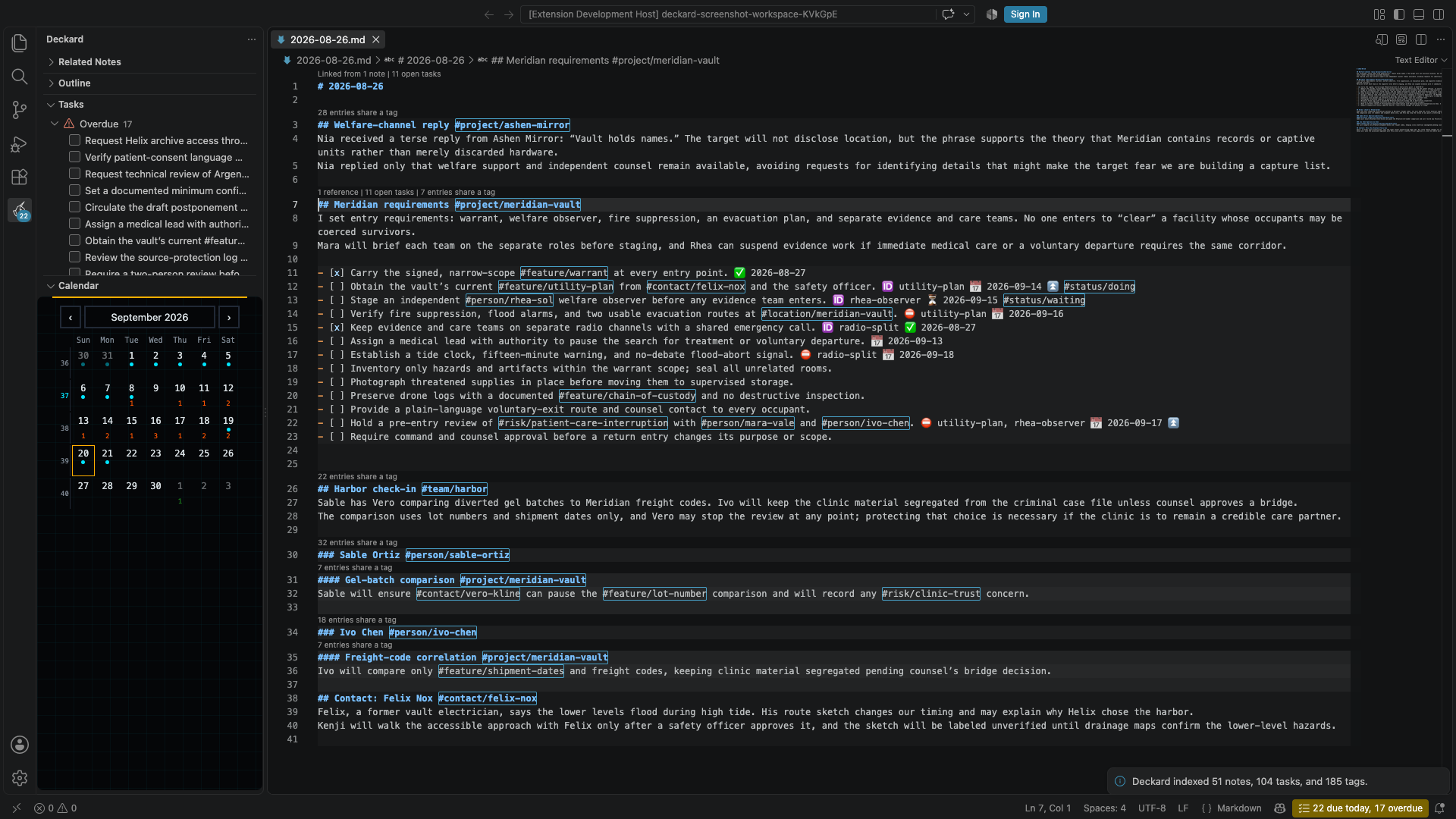
- Overdue lists tasks whose due date has passed, the most recently slipped first, five at a time: Show 12 more under them lists the rest until the window closes. Its count, Reschedule All, and the badge still cover all of them.
- Today lists tasks due today, and tasks scheduled for today or earlier that have started, most important first.
- Upcoming lists tasks due, scheduled, or starting in the next seven days, one group per day that has any — Tomorrow, Mon Sep 28 — so a crowded day shows before it comes.
deckard.agenda.upcomingDayssets how far that reaches. Drop a task on a day to make it due that day. - Later holds the dated tasks past that, by the date each waits for, and No date the open tasks carrying no due, scheduled, or start date at all, most important first. Both start folded, out of the way of what cannot wait.
- Done today holds what you finished today, by its ✅ date, folded at the end, so the list shows what was done and not only what is left. Unchecking a task there reopens it, and a task dropped on it is completed. A task completed with
deckard.tasks.addDoneDateoff has no date to count by. - Needs a new date holds the open tasks more than 30 days past their due date, each saying when it was due. A task a month late is not going to be done today, so it leaves Overdue, the badge, and the status bar’s count, and waits here, folded, for a new date: the calendar button beside it, or Reschedule All…, dates them.
deckard.tasks.needsNewDateAfterDayssets how many days;0keeps every overdue task in Overdue.is:overduestill finds them all. - What the view lists is every open task, or the open tasks a search finds: set
deckard.agenda.queryto any query, such asis:minefor your own,#project/atlasfor one project’s, orhas:due OR has:scheduled OR has:startto leave undated tasks out. Home’s agenda widget and the status bar count the same list, so the view, the widget, and the number agree. A query that does not parse hides nothing and says so at the top of the view. The search icon in the view’s title opens its search on the Task board, where it can be tried and changed with the results in view; the board’s List in Tasks view, in its gear, then keeps it. The view’s title line shows the search it lists. When the view’s search finds nothing, the view says so and offers Show every open task; Clear the Tasks View’s Search, in the view’s…menu and the palette, does the same while any search is set. - Group by in the view’s title chooses what its groups are: Due status (the three above), Priority, Status, Person, or Tag namespace…. The tasks are the same whichever you pick — the open ones
deckard.agenda.queryfinds, or every open one — so grouping changes the axis rather than the list.deckard.agenda.groupBykeeps the choice.- Tag namespace groups by the tags in one namespace you choose, such as
#project/…or#context/…, busiest first, with No project last. A tag counts whether it is written on the task, on a heading above it, or in its note’s front matter, as it does in a search; a task with two such tags is in both groups, and says also in the other.deckard.agenda.groupNamespacekeeps the namespace. - Priority runs highest to lowest, each group marked with the same emoji the task lines use, and No priority last.
- Status reads the
#status/…tag written on each task line, busiest group first, with No status last. It followsdeckard.board.statusNamespace. - Person groups by who each task is for, busiest first, with Nobody named last.
- Tag namespace groups by the tags in one namespace you choose, such as
- Within a group, tasks you have ranked on the Task board lead in the order you dragged them into; the rest follow by date, or by priority in Today.
- Each task shows why it is listed, its priority, and its file, plus
blocked by …while a task it waits for with ⛔ is still open. Select a task to open its line. - Drag a task onto another to rank it there, which writes nothing to your notes — it is the same rank the Task board’s list uses.
- Drag a task onto a group to make it belong to that group, written into the task through the same checked edit the board’s drops make: a priority, a status, Today for a due date, a tag in the namespace, replacing the one it was dragged from, or a person, which rewrites who the task is for and leaves anyone else named on the line as a mention. Nobody named takes the name off. Overdue, Later, and Needs a new date cover a range of days rather than one, so they name no edit and say so. A tag the task inherits cannot be taken away by dragging, and Deckard says which heading or front matter gave it.
- Check a task’s box to complete it with the same source-safe edit the Dashboard uses, including its ✅ date and next occurrence.
- Right-click a task to make it due today, tomorrow, or next Monday, or on a date typed in plain words, to open it in the task editor, which the pencil beside it does too, or to break it into steps. Select several tasks to date them together. One task is one line with Undo beside it; several are one write, previewed and undone like Deckard’s other multi-note writes.
- A task with steps reads 2 of 5 steps · next: Draft the email and opens to its steps, each with a checkbox; plain steps are not listed again on their own. See Breaking a task into steps.
- Reschedule All… on a group dates every task in it at once, and the calendar button beside Overdue does the same for what is overdue.
Deckard: Reschedule Overdue Tasks…does it from the palette. Each day it offers says how full it already is — Fri 2026-09-25 · 3 due · 1 scheduled — and for several tasks it offers two more:- Spread over the next 5 days gives them the next five weekdays, from today or from Monday on a weekend, oldest due first, so 17 tasks are 4, 4, 3, 3, and 3.
- 3 for today, the rest next week, for four or more, keeps the three most important today and moves the rest to next Monday. Either is one write, previewed and undone like any other, and the message after a move of several says how full the day now is: Today now has 8 tasks.
- Hovering a task shows its words, its dates and priority, and where it is written, under the headings above it.
- The view’s badge counts the tasks that are overdue or due today, whatever it is grouped by.
Right-click a task, or several, for Move to…, which moves each with its steps under another heading, into today’s note, or into a new note, leaving a link behind; see Moving lines and tasks.
Status bar and reminders
Deckard puts one count in VS Code’s status bar: 3 due today, counting the same open tasks the Tasks view’s Overdue and Today groups hold. Selecting it opens that view.
- The item is hidden while nothing is due, so a clear day is a quiet bar. When something is overdue it says so — 1 overdue, 3 due today — and takes the editor’s warning color. Each number counts its own group; neither is the sum of the two.
- It follows the index, and catches up when the window regains focus, since what counts as today moves at midnight.
deckard.statusBarturns it off.deckard.taskReminderTime, set to a time of day such as09:00, has Deckard say what is due once a day, in one window, at the first minute on or after that time; if VS Code was closed or asleep then, when it next opens that day. It comes with Open Tasks View beside it, Reschedule Overdue… when something is, and Turn Off Reminders, which clears the setting where it was set. It is empty by default, which is no reminder, and a day with nothing due says nothing at all.- Hovering the count lists the first few overdue tasks by name, says how many tasks need a new date, and how many were done today.
- A task more than
deckard.tasks.needsNewDateAfterDays(30) days overdue is left out of the count, its warning color, and the reminder: it is in the Tasks view’s Needs a new date, not today’s work. A day whose only dated tasks need a new date leaves the bar hidden. - Beside it, while a note is in the editor, Deckard counts its words: 412 words · 2 min, or 38 of 412 words with a selection. Front matter, code, comments, link addresses, and task metadata are not counted; the minutes are at 238 words a minute. Right-click the status bar to hide it.
Quick capture
Run Deckard: Capture and type a task. Deckard adds it as - [ ] … to today’s daily note, creating the note from your template if needed, and leaves you in the editor you were using. The box stays open when you click elsewhere. If you close it with words in it, the next Capture brings them back.
The words at the end of a capture are read as a task manager’s quick add reads them, in any order: a day (today, tomorrow, friday, next monday, in 3 days, next week, end of month, oct 3, or after on, by, or due, a short day such as fri, +2w, the weekend, a date, or a numeric date such as 10/3), a priority (p1 to p4, or !!!, !!, !), and a repeat rule (every week, daily). Call Ren friday p2 is written as - [ ] Call Ren ⏫ 📅 2026-10-02, and the line it will write is shown under what you type before it is saved. The Keep the words as written button in the capture box reads nothing from them. Add as a note line, under the task, writes a plain - … list item instead, for an idea that is not a to-do. Typing # or @ suggests tags, most used first: choose one to complete the word, and press Enter on the task itself to add it. The list button in the capture box, or Deckard: Capture Under a Heading, adds the task under a heading you pick from any note instead.
With a few words selected on one line — up to 120 characters — Capture starts from them, all selected. In a note, the capture links back to the heading they were selected under: Call Ren friday selected under ## Weekly review in 2026-09-22.md writes - [ ] Call Ren [[2026-09-22#Weekly review]] 📅 2026-10-02, the link after the words and before the date. The link button in the box turns the link off for this capture. The selection wins over what you were typing before; that draft is the second row, Restore what you were typing, and is kept for the next Capture.
The heading list starts with Recent, the five headings Capture and Move to… went under last, with the last one highlighted so Enter repeats it; then every heading, from the notes you open most. Under a heading, a capture goes under the heading’s own lines, above any heading nested in it.
A capture goes after the last list item already there, or after a blank line below the last text. A note open in an editor keeps its unsaved changes, and the note is saved.
← Writing notes: tags, people, and links · All topics · Task board →