Deckard guide
Getting started
Requirements
- VS Code 1.134.0 or newer.
- An open folder or workspace containing Markdown notes.
Deckard scans every *.md file in each workspace folder by default. Set a notes folder only when you want to restrict the index.
Install
Download the VSIX attached to a GitHub release and run Extensions: Install from VSIX... in VS Code.
Get started
The fastest way to see what Deckard does is to let it show you: Deckard: Create a Sample Workspace writes a tour of Deckard to read and do, and opens it, in this window when no folder is open and otherwise in a new one or this one, as you choose. Its README, Start here, opens once the window has reloaded and leads through ten notes, one a topic: tasks, the Task board, repeat rules and dates, search and the query language, query blocks, tags and people, links, daily notes and reviews, Capture and parking, and Home, Stats, and the graph. Each note says what it holds, holds the tasks, tags, and links that make it show — six daily notes up to today’s, hub notes for two projects, two teams, and a person, a parked note, a note with no tags, and a templates folder among them — and ends with Try it: the commands, keys, and searches to run, and what each shows. The notes are dated from the day you make them, so something is overdue, due today, due next month, and done today whenever you read them. The sample is kept in VS Code’s storage for Deckard, with a .vscode/settings.json of its own so your settings cannot hide its notes, and so it can name you, show the calendar’s day panel, and migrate tasks on rollover without touching your other folders. Running the command again offers to replace it with a fresh copy dated from that day.
Deckard: Get Started, or Walkthrough in Home’s gear, opens the walkthrough: six steps — open a note, tag it, capture a task, see the workspace, find anything, and choose a theme — each checked off as you do it.
- Open a folder or workspace in VS Code.
- Open any Markdown note in the workspace, or restrict indexing to a folder.
- Open the Command Palette and run
Deckard: Open Dashboard. - Select the Deckard icon in the Activity Bar to open Related Notes while editing a Markdown note.
Deckard scans the workspace Markdown scope automatically and refreshes when saved notes are added, edited, or deleted. The first time it reads a workspace it says what it found, once, such as Deckard read 412 notes: 1,204 open tasks (17 overdue) and 185 tags., with Open Dashboard and Get Started; a workspace of 3,000 notes or more is also told how the “Exclude” setting leaves folders out.
In a code repository, Deckard’s editor features apply only to notes: a README outside deckard.notesFolder, or under node_modules, is left alone.
Run Deckard: Reindex Workspace from the Command Palette to trigger a full scan manually; it reads and parses every note again, where a rescan after a settings change rereads only the notes whose size or saved time changed.
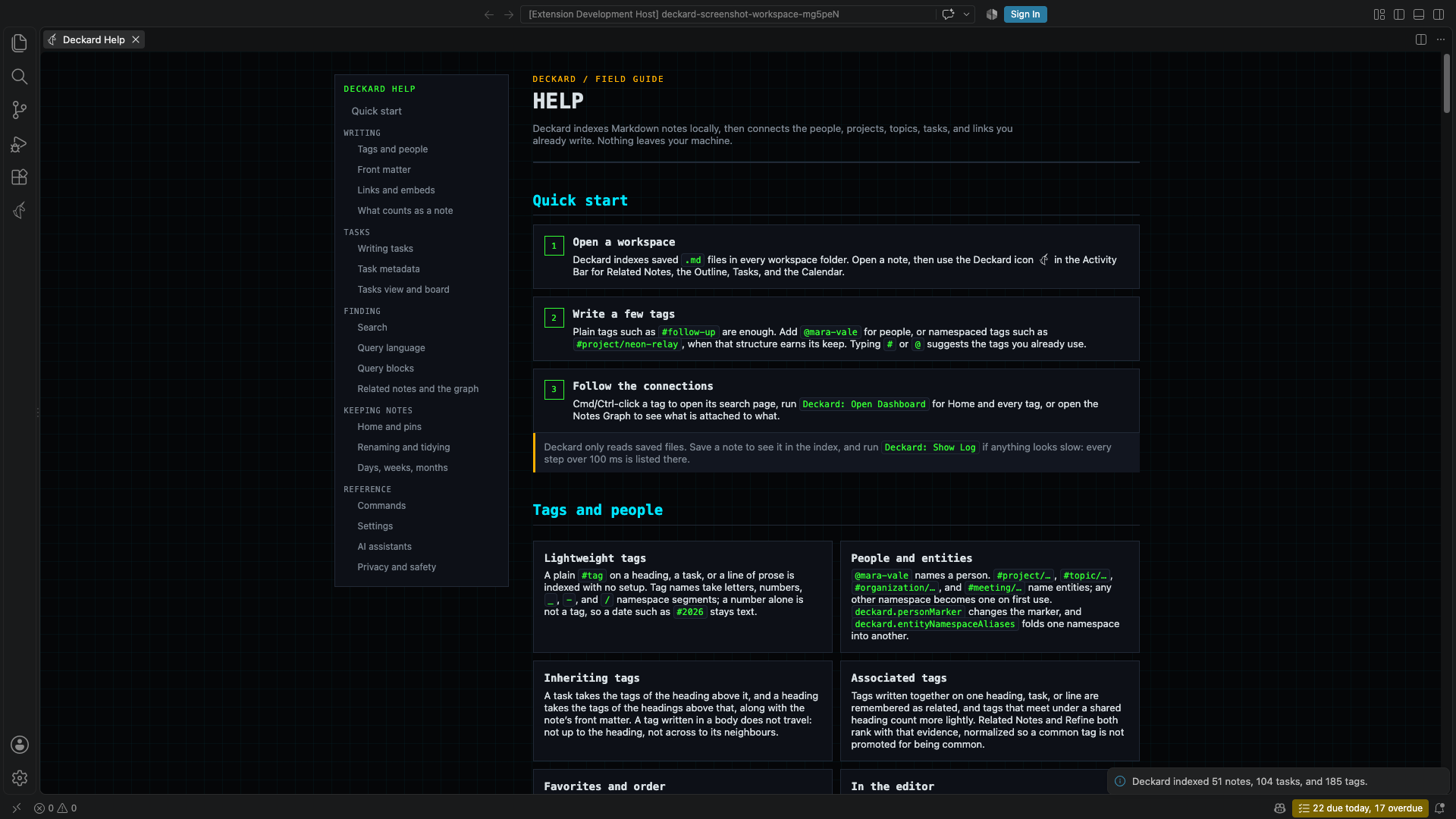
Run Deckard: Open Help, or select the question-mark button in the Related Notes toolbar, to open the Help page. It includes a quick start, advanced configuration guidance, and in-page navigation by feature category. A command Help names, such as Deckard: Find in Notes, is a button that runs it, with its shortcut beside it; one that acts on the note in the editor, such as Deckard: Edit Task, is named for you to run from a note.