Deckard guide
Search pages and tag overviews
Search pages
Every search opens a search page in its own editor tab, and a tag’s overview is the search page for that one tag. Open one by Cmd/Ctrl-clicking a tag in the editor, selecting a tag on the Dashboard, in Related Notes, or anywhere else Deckard shows one, running a search from Home, Find, or Deckard: Search Notes and Tasks, or running Deckard: Open a Tag's Search Page or Deckard: Open Search Page. Opening a search a page already shows brings that page forward rather than opening another. A parked note or task is still listed, after every other, marked Parked; so are Find’s and [[ completion’s.
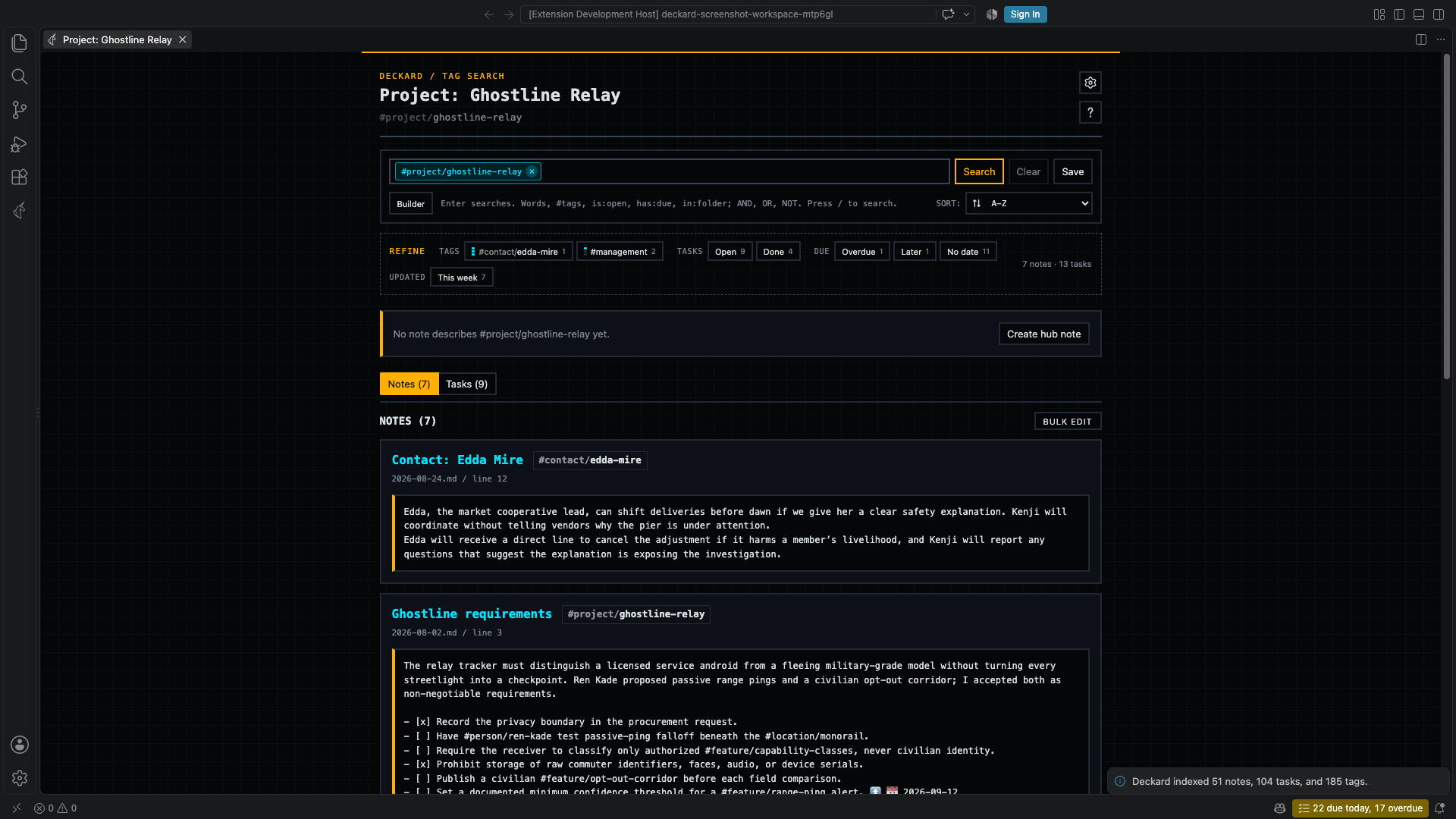
- One tag is its overview. A search of exactly one tag shows the tag, or the entity it names, as the page’s title, and the hub note that describes it above its entries. The hub’s own entries are not listed again below it.
- Anything more is a search. Add another tag, words, or a condition such as
is:open, and the page becomes an ordinary search: its search box and Builder show everything it is filtering by, and the title says Search. Clear returns the page to the tag it opened with. - Refine narrows the results, five values of each kind at first, with +N more for the rest. On a page of one tag, or of several tags joined by AND, it offers related Tags first, those on the most results first, with a three-step rail filled by the share of the results each is on; select one to add it to the search.
- Notes and Tasks are two tabs, or side by side. The Tasks list shows every task the search found — the search is the filter, so
is:openoris:donein the box narrows it — with checkboxes that update the original Markdown task. - Sort notes alphabetically, by creation date, by update date, or by most accessed, on the line under the search box.
- A tag on a result, a task row, a board card, or in Related Notes is written as quiet monospace text that opens its page; the editor keeps its tags in a box.
- Each result shows three lines of its entry, and Show all under it opens the rest. When the words searched for, or being typed, sit further down, the three lines are the paragraph they are in, after a muted …. The gear’s Preview chooses None, 3 lines, or Full.
- The words searched for are marked where they appear in each result, and a note’s file, line, and the headings above it sit in its header, since where something was written is how it is told from the others. In zen mode they fold under the result, as they do elsewhere, and Escape puts a folded line away until the pointer moves.
- A broad search is shown a page at a time, with Previous, Next, and the page numbers under each list, and the range it is showing, such as 271–300 of 3,760. Notes and tasks are paged separately. Per page chooses 10, 30, 50, 100, or 200 results to a page; it starts at 30 and is remembered, so every search page opens the way you left the last one. The counts beside Notes and Tasks, the Refine counts, and the filtering you do by typing in the search box are all of the whole search, never of the page. Changing the search, the page size, or the Open/Done filter returns to the first page, and a search that shortens while its last page is open moves you back to the last page it still has.
- The View options gear chooses Tabs or Side by side, a rendered view or the original Markdown source, and one through four columns for notes and for tasks. Pages start rendered; Format → Source shows the Markdown, and is remembered once chosen.
- Save keeps the search as a saved search, and then offers Show Results on Home, which adds a widget listing what it finds, or Open Home. A saved search’s row on Home offers Show results until Home lists it. A search of two or more tags is saved as that set of tags, and follows them when they are renamed; the saved search’s name appears above the title whenever the page’s search matches it.
- Select a note entry to jump to its heading in the source note. A click opens it in a preview tab, which the next result reuses, as VS Code’s Explorer does; a double-click keeps the tab, and Cmd/Ctrl-click opens it beside the page, so the list stays in view. The same holds on the Task board, Home, Stats, and in the Notes Graph, where Alt-click opens a note beside it.
- ‹ and › beside the gear, or Alt+← and Alt+→, go back and forward through the searches the page has shown, as the mouse’s own back and forward buttons do.
Opening a tag’s page records tag access. Opening a section records section access, which powers the access sort. A page that a search was saved from before search pages existed, or a tag overview left open, reopens as a search page with the same tag, tags, and words.
Taking a search’s results out
Export, beside Bulk edit over a search page’s notes or tasks and beside Save on the Task Board, takes everything the search found — not only the page on screen — as a Markdown table, a Markdown list with a link to each result, or CSV, and either copies it or saves it to a file you choose. When the page has a search, the first choice is Copy as live query block, which copies the search itself as a query block, with its sort, to paste into a note where it stays up to date. Nothing else leaves the machine: the index stays where it is, and what goes is what you would have read on the page.
Editing a search’s results
Bulk edit, beside a results pane’s heading, makes one edit to everything the search found. A search page is where a set of notes and tasks is already gathered — refine it until the results are the ones you mean, then edit them together:
| Results | What can be done to them |
|---|---|
| Tasks | Complete, Reopen, Set a due date, Add a tag |
| Notes | Add a tag, written at the end of each heading line |
- Deckard asks what to do, then lists the results with every one chosen; unpick any you want left alone. The list is VS Code’s own, so it is searchable and works from the keyboard.
- Completing tasks works exactly as a checkbox does, done date and next occurrence included, so a repeating task still leaves its next occurrence behind.
- A tag is written at the end of the line, and a line that already carries it is left as it is.
- Every line is compared with the line Deckard indexed before it is touched. A task or heading edited since is left alone and counted, so an edit made while the page was open is never overwritten.
- The whole edit is one write: previewed when it reaches more than one note, and taken back by
Deckard: Undo Last Change. - The results are what the search found, not the page of it on screen. A page with no search of its own — every note — edits the results it is showing instead, since every note is not a set anyone means to edit at once.
- Moving notes into a folder is not one of these edits: the Explorer does that, and Deckard carries their links along.
Hub notes
A hub note describes a tag, so the tag’s overview opens with what the tag is rather than only where it is used. Add describes: to the note’s front matter:
---
describes: project/atlas
status: active
owner: "@dana"
---
# Atlas

Migration of billing onto the new ledger.
- The overview for
#project/atlasthen shows the note at the top, with its other front-matter fields as properties. Values that are tags, such as@dana, open their own overviews. The hub’s own entries are not listed again below it. - Write the tag without its
#, or quote it, because YAML reads an unquoted#as the start of a comment. Quote people, as indescribes: "@dana". A list such asdescribes: [project/atlas, proj/atlas]describes several tags. - An overview with no hub offers Create hub note in a line under its title, which writes one to the notes folder and opens it. An existing note is never overwritten. When the templates folder has a template named after the tag’s namespace, such as
project.md, the new hub starts from it; see Templates. - When several notes describe one tag, the first by path leads the overview and the others are listed beneath it.
- Hovering the tag in the editor names its hub note, and renaming the tag updates
describes:too. - Filtered and query views leave the hub out, so they show only their results.
- Select the hub’s title row to collapse or expand it; the overview remembers your choice until it closes.
deckard.tagOverview.hubNoteExpandedsets whether hubs start open, which they do by default. - A tag’s page with a name of three letters or more also says how many entries write that name as a plain word without the tag: 12 entries mention “atlas” without the tag. Show them runs
text = atlas -#project/atlas, leaving out the hub, so Bulk edit → Add a tag can tag them all.@danacounts “dana” the same way. - The page also lists every entry and task that links to the hub note without carrying the tag, each marked Links the hub note beside its location, and says so under the hub: Also listing 5 entries that link to Atlas plan without the tag. Leave them out turns
deckard.tagOverview.includeHubLinksoff. Counts, tabs, pages, Bulk edit, and Export include them while it is on.
Merging tags
Rename a tag to one that already exists, or run Deckard: Merge Tag… and pick the tag to keep, to merge the two. Deckard first shows how many entries each tag has, how many carry both, and how many the kept tag will have, and asks before changing anything, because renaming back later cannot separate them again.
- Where the kept tag already sits beside the old one on a heading or task line, or in the same front-matter list, the old tag is removed rather than repeated. Inside a sentence it is replaced, so the sentence still reads.
- Favorites, access counts, Dashboard tag selections, and saved searches move to the kept tag. A plain rename moves them too.
Previewing and undoing a write
Renaming a tag, merging two, and renaming a heading rewrite notes you never opened, which is further than an editor Undo reaches. Both ends of that are covered:
- The changes are shown first. A write that reaches more than one note opens in VS Code’s own refactor preview, where each change sits under its note with the line it will become. Leave any of them out by unchecking it, then apply. Deckard reports what actually landed, so a change you left out is not counted and not undone later.
deckard.previewWorkspaceWritessets when this happens:severalNotes(the default),always, ornever.- Deckard: Undo Last Change puts the notes back as they were before that write, after saying how many it will restore. A note you have changed since — in the editor or on disk — is left exactly as you left it, and Deckard says how many it left alone. Favorites and saved searches that followed a renamed tag move back with it.
- One write is kept, and only the last: the way further back is your version control, which is why the notes stay plain Markdown.
Set deckard.enableHeadingTagRelationships to false to refine by the tags the results carry instead of by related tags, while keeping ordinary tag indexing and note content unchanged.
← Search · All topics · Query blocks →