Deckard guide
Related notes, the graph, and the outline
Related Notes
Open Related Notes from the Deckard Activity Bar while editing a saved Markdown note. It suggests other note entries that may concern the same work. Each result shows the first line of what the entry says, with the words it shares with your note marked. The gear beside Sort by sets Preview to None, 1 line, or 2 lines, and Daily notes to Show or Hide.
A note with no tags yet has nothing to rank by, so Related Notes lists up to ten entries whose wording is similar, under Similar wording (no tags yet), each marked weak and kept apart from the related notes, and above them, under Tags used by similar notes, the tags those entries use, most telling first. Select Add beside a tag to write it on the heading or line where the cursor is — the heading you are on or under, or the task or line you are on — and the note is saved; the message offers Undo, and Undo Last Change takes it back too. With a tag, the note is then ranked by it as any other. A note with a tag never gets this list: for it, wording alone never makes another note related. deckard.enableKeywordLinks turns it off along with the wording signal. Parked notes are not suggested, unless the note you are in is parked itself; then they come after the rest. Linked from still lists a parked note that links here, last, marked Parked.
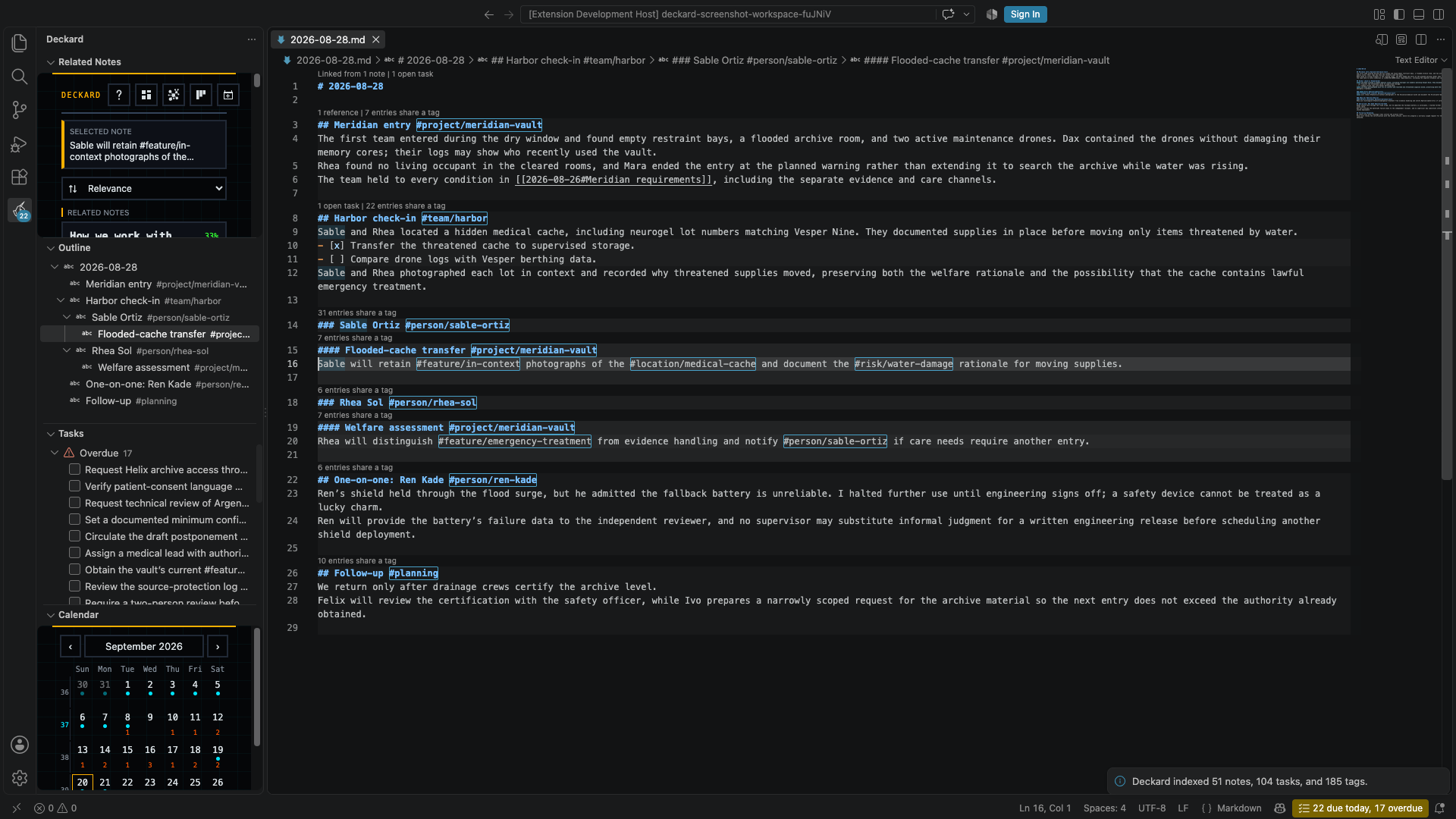
Under the related notes, Linked from lists the notes that link to this one, newest updated first, each saying when it was updated and how many links it has here; under each, its linking lines, each under the headings it was written beneath. The count beside Linked from is the number of notes. The › at the end of a line unfolds the rest of its section as plain text, up to fifteen lines. At the foot, Open as search opens link = [[This note]] as a search page, where Refine, Bulk edit, Save, and Export work on every entry; when more than fifty lines link here, it reads 12 more not listed. Open all as a search. Daily notes: Hide, in the gear beside the sort, leaves daily, weekly, and monthly notes out of the related notes and of Linked from, since a daily note links to everything written that day; Linked from then says Hiding 8 daily notes. with Show them, and Open as search adds -is:periodic. The choice is remembered. Mentioned without a link lists the lines that write the note’s name as plain text. Select a line to open it, or Cmd/Ctrl-click to open it beside the note. Each mention has its own Link, which makes it a [[link]] as written, and Link all links every one as a single change that Undo Last Change takes back.
The view’s title bar holds its shortcuts, as every other view’s does: Home, the Task board, and today’s note, with the Notes Graph and Help in its … menu.
What makes a note related?
| Signal | Example | Importance |
|---|---|---|
| Shared tag | Both entries contain #project/atlas |
Strongest |
| Parent or child-heading context | Your selected entry sits under a #project/atlas parent heading, or a selected heading contains one |
Useful, but lighter |
| Associated tag | #project/atlas and #risk/vendor are often written together |
Supporting evidence |
| Entry Wiki link | An entry links to [[Launch plan#Decision]] |
Small supporting evidence |
| Shared wording | Both entries use distinctive section wording | Adjusts the score of an entry that qualifies another way; never makes an entry related on its own, unless the note you are reading has no tags at all |
For example, if you select #project/atlas #follow-up, a note with both tags ranks ahead of a note that only contains an associated #risk/vendor tag. Associations retain their raw source evidence but are normalized for support and tag prevalence before diminishing returns are applied, so generic tags cannot dominate and indirect connections cannot overtake a complete direct match.
On the Debug related notes page, a source unit is one distinct tagged heading, tagged line, task, or heading relationship where Deckard can observe a tag; it is not necessarily a whole file. Raw evidence is the starting strength of an association, while normalized relevance adjusts that strength for repeated support and how common each tag is. BM25 lexical similarity (also written BM-25) is a capped search-style text match that gives more weight to distinctive shared words than to common words.
For the complete source-unit model, formulas, worked examples, configuration details, and external references, see the Related Notes association and ranking reference.
Focus one note entry
Tagged headings highlight their full section; tagged lines and tasks highlight their line. Hover one to choose Show related notes for [entry]. The sidebar identifies the scope as a Selected entry, shows the source note, and uses that entry’s tags first before adding tagged parent headings as lighter context. When the selected entry is a heading, tagged descendant child headings and tagged child items are also added as lighter context. Parent and child heading context decay by distance; child items use an additional level of decay, and the strongest occurrence wins when a tag appears more than once. The active tags are listed one per row, each with a segmented Rail marker for its contribution and a count of the notes and tasks carrying it; hover or focus a tag to see its exact Related Notes weight and that count split into notes and tasks. Choose Show whole document in the sidebar to return to the normal document view.
Each result shows its compact heading path and a concise primary reason for the match. Daily notes also show their inferred YYYY-MM-DD date, making a result such as 2026-09-10 > Project Atlas > Check-in understandable before opening it. When both a broad heading and a nested child use the same tags, the child appears first because it is the more specific match. The Related Notes list includes its result count and shows 50 results at a time; Show more adds the next 50. The Sort by control keeps the selected ordering visible.
Understand a score
Each result carries a three-step rail, the same one Refine draws, filled for a strong, moderate, or weak relation. Select it to open the explanation, with the exact score, the matching signals, and the weights; it also works from the keyboard. For the complete calculation, hover a tagged entry and choose Debug related notes for [entry]. The debug page shows whether each selected tag came from the entry, parent ancestry, a child heading, or a child item, along with heading paths, daily-note context, raw and normalized association support/prevalence, entry and file link evidence, lexical terms, optional recency, and specificity adjustments.
Use the sort control to choose Relevance, Newest, Oldest, or Most accessed. Select a related note to open its matching line, or select a tag to open its page.
Each result also carries a link button, beside its score, which writes a [[Note#Heading]] link to that entry at the cursor of the note you are editing, replacing the selection when there is one. The link names the heading the entry was written under, without its tags, and names the note alone when the heading only repeats the note’s title. A tagged line or task is linked through the heading above it, since a link cannot name a line. When two notes share the name the link has to use, Deckard writes it and says which notes it could mean, because renaming one of them is the only way to make it resolve.
Refine a search from the sidebar
While a search page or the Task board is the active editor, Related Notes shows that search’s Refine options instead of related notes, so the page keeps its height for its results. It lists only the ways the results could be narrowed; the page keeps its search, terms, and counts, and terms are removed in its search box. Related tags are listed by how many results carry them, each with a three-step rail, as Related Notes draws a tag’s weight, filled by its share of the results; hover one to read In 6 of 13 results. and how often the tags were written together or shared a heading.
- Select a value to add it to the search.
- Alt-select it to leave those results out instead.
- Shift-select it to allow it beside the value of the same kind already chosen.
- Select the open icon beside a related tag to open that tag’s page in a new tab.
The page shows a single Refine line while the sidebar holds its options, and its full Refine box again when you close the sidebar. Returning to a Markdown editor brings related notes back.
Notes Graph
Run Deckard: Open Notes Graph, or select the graph icon next to the Dashboard icon in Related Notes, to see the whole workspace as a zoomable force-directed map. Notes and tasks appear as dots sized by everything each is joined to in the index, so a dot keeps its size however many links are drawn. The visual layout detects weighted communities from structural links and prevalence-adjusted tag evidence, then positions each community around a virtual anchor; hidden tag nodes no longer act as high-mass particles. Secondary tags and associations still provide lighter bridges without drawing a dense web between every pair of notes. The view starts zoomed out over the full graph and stays smooth with thousands of nodes.
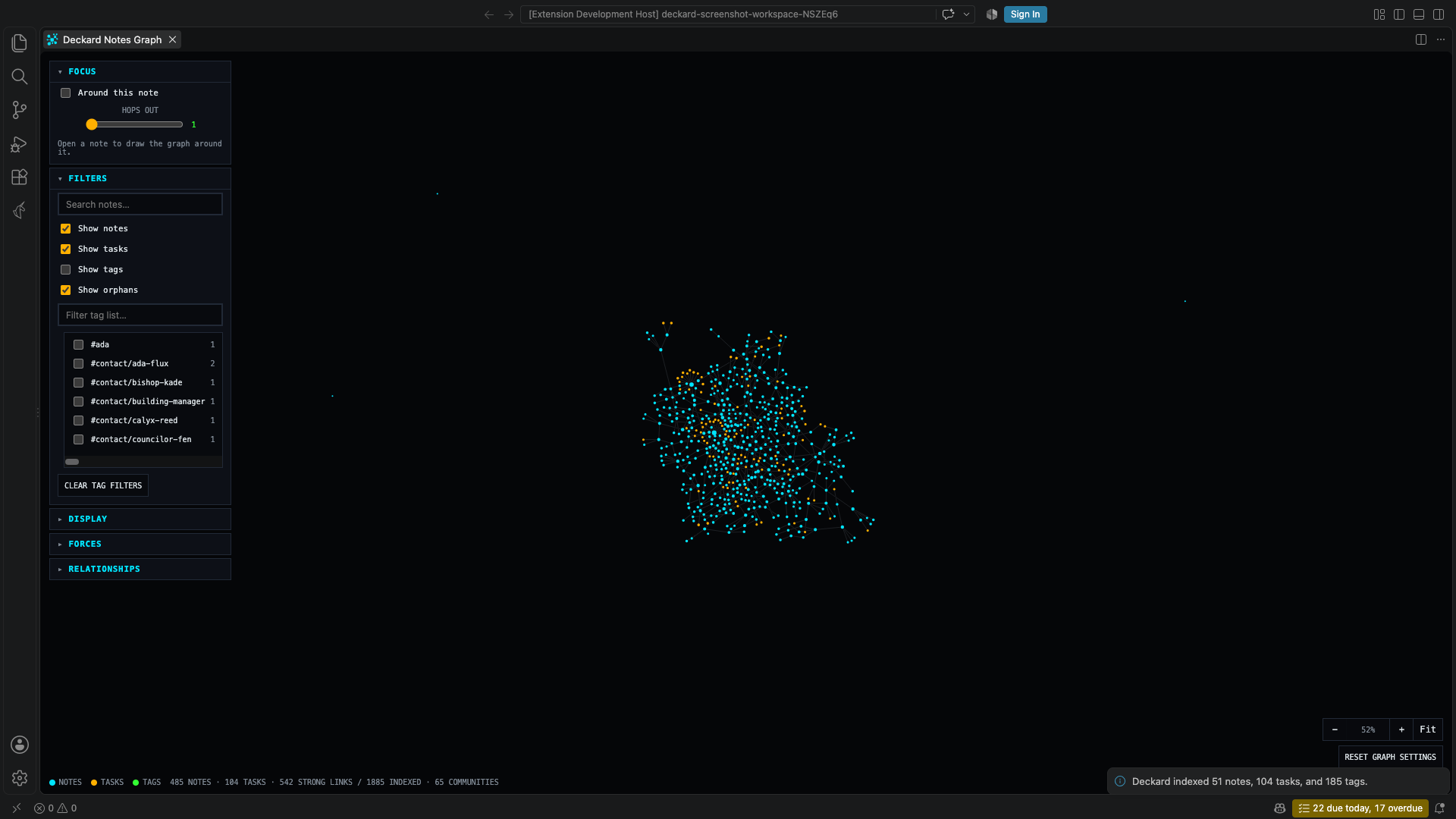
- Scroll to zoom toward the cursor, drag empty space to pan, and drag a dot to rearrange its cluster; Fit reframes the whole graph.
- Parked notes, tasks, and the tags only they carry are hidden until Show parked, under the filters, is on. The note a local graph is drawn around is always drawn.
- Hover a dot to highlight its direct graph neighbors and see its source location and what joins it, by kind:
atlas.md:12 · 4 wiki links · 2 headings · 7 tags, or for a tag,Tag · on 42 notes and tasks · 5 related tags. Select any note, task, or tag dot to list those connected nodes in the sidebar using the same note-card and tag styling as the rest of Deckard. Select the current node at the top of the sidebar to open its note/task source or tag page. Select a connected sidebar item to move the graph selection; Cmd/Ctrl-click it to open that item instead. Cmd/Ctrl-clicking a graph dot opens the same destination, and selecting empty space clears the selection. - Focus draws the graph around the note in the editor rather than the whole workspace. The graph opens this way, one hop out, whenever a note is open in the editor, since a whole workspace at once is hundreds of unlabeled dots; clear Around this note for the whole graph, and the choice is kept while the graph is open. At rest, the whole graph names its best-connected notes, and zooming in names the rest. Around this note turns focus on, and Hops out chooses how far it reaches: one hop is the note, the tags it carries, and the notes it links to; two adds what those touch. The line beneath says which note it is drawn around and how many of the workspace’s nodes are on screen. Pass through daily notes, on by default, keeps daily, weekly, and monthly notes out of a focused graph while still counting them as a hop: a daily note links to everything written that day, so drawn, it ties the whole neighborhood into one knot, and left out, it cuts off what it leads to. What lies beyond one is joined to where the path began.
- It follows the editor: open another note and the graph is redrawn around that one. The graph is itself a tab, so the note it is about is the last one you had open.
- A tag association is a hop like any other, so two hops out reaches the tags your tags are usually written with, and the notes carrying them.
- Only the neighborhood is sent to the page, so a local graph costs a screenful whatever the workspace holds. Hiding notes or tasks leaves them out of what is sent, too. The tag checklist narrows to the tags that neighborhood actually holds.
- Filters searches titles and paths, restricts the view to selected tags, and independently toggles notes, tasks, tag nodes (off by default), and orphan nodes. Clear filters takes back the tag filters and the group picked out.
- Zoomed out, each group of four or more notes and tasks is named where it sits, over a faint disc, after the tags its notes carry more than the rest of the workspace does (
atlas · design), so a tag on every note names nothing; a group with no tags is named after its best-connected note. Click a group’s name, or choose it from Group under the filters, to pick it out: the rest dim and the view frames it. When the graph no longer has that group, the status line says so and shows everything again. - Lines say what joins two dots: a solid line is a wiki link you wrote, a dashed line a heading and the heading under it, a dotted line a shared tag, and a dash-dot line a path through a daily note in a focused graph. The legend in the status line shows each one. Only links I wrote, under the filters, draws every wiki link and nothing else, with no link left out for being one too many; headings and tags still place each note, so nothing moves, and the status line counts the links and the notes with none.
- Display adjusts node size, link thickness, and the zoom level at which labels appear. Headings chooses how a note of several headings is drawn: By zoom, the default, draws each such file as one dot while zoomed out, sized by all its headings together, with its links to other files joined, and opens it into its headings once you zoom in past Label fade zoom (with a little give either way, so it does not flicker at the edge); Always draws every heading, and Never every file. A file’s dot opens and selects its first heading. Links per note sets how many of each note’s strongest links are drawn, from Fewer to More. Advanced, folded at the end of Display, holds Favor rare tags (how much more a tag on a few notes counts than one on nearly every note), Links between groups (how strongly a note’s other tags pull it toward other groups), and Show every link, which draws every link rather than each note’s strongest. Reset graph settings restores these controls, clears graph filters, and reframes the view; Undo beside it puts them back for a few seconds.
- Forces tunes the layout with cluster centering, cluster cohesion, community spacing, repel strength, link strength, and link distance; changes re-run the simulation live. The graph’s default layout uses a prevalence-aware local backbone: direct Wiki links and headings seed visual communities, tag memberships are scored against a target community size, and each node retains only its strongest connections. The underlying Connected Nodes sidebar still uses every indexed relationship.
- The graph is read-only: it never changes tags, associations, or your Markdown sources, and control choices persist per panel.
- The sidebar switches to Connected nodes only while the Notes Graph tab is active. Returning to a Markdown editor restores the normal Related Notes ranking.
Outline
Open Outline from the Deckard Activity Bar to see the active Markdown file’s headings as a tree. It is a view like any other, so it can be dragged into either the primary or the secondary sidebar and VS Code remembers where you put it.
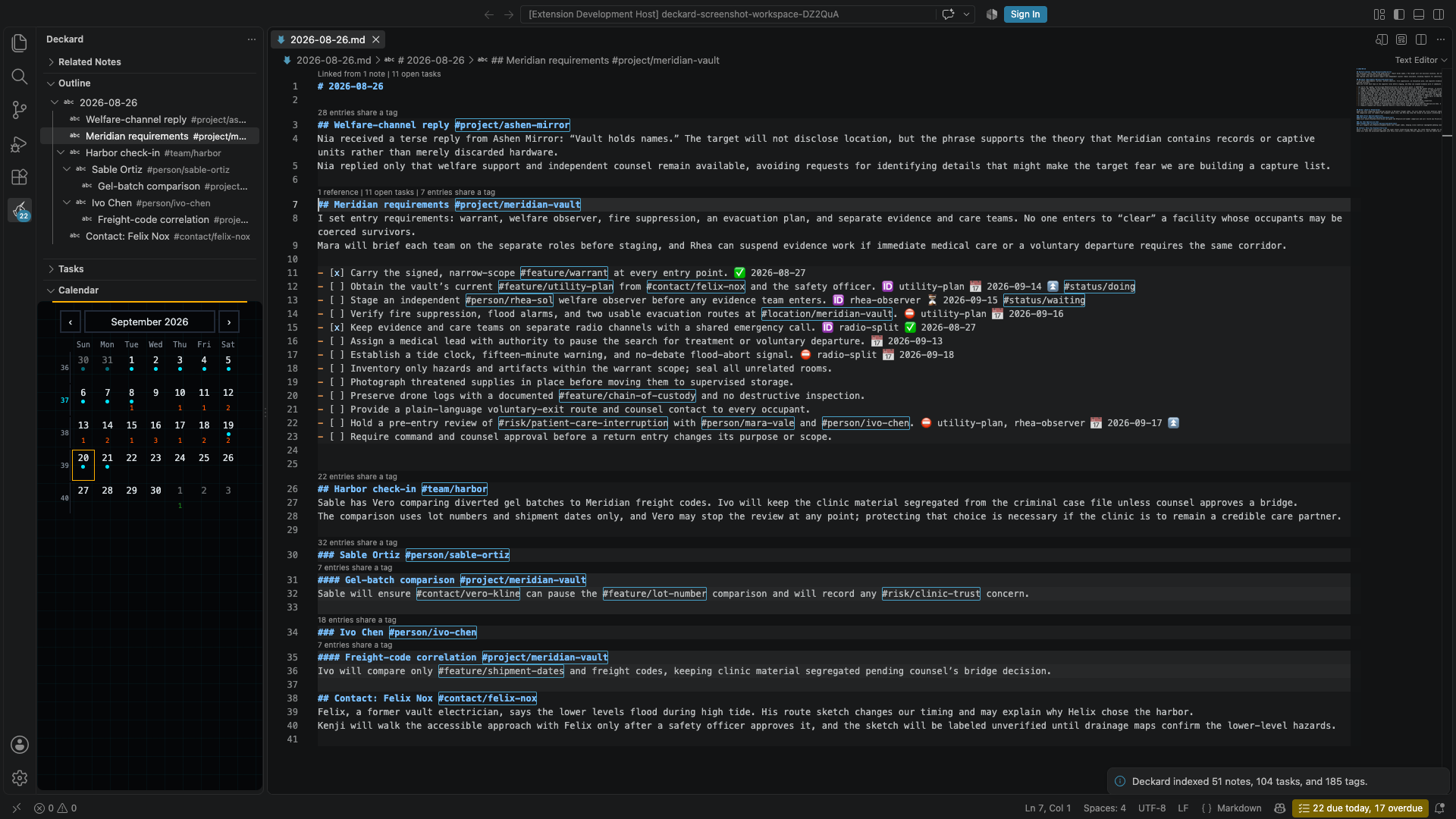
- Heading markers and tags are taken out of each title, and the heading’s own tags are shown beside it, so structure and labels read as two columns.
- Untagged headings are kept as structure, so a tagged heading stays where you wrote it. A heading written as nothing but tags shows those tags as its title.
- Headings inside fenced code blocks are ignored, and a numeric hash such as
Sprint #3stays in the title because it is not a tag. - Beside each heading, 2/5 says two of the five tasks under it are done, sub-headings included, and ↩3 that links in other notes name it three times; the tooltip spells both out. Zen hides them, and
deckard.outline.showCountsturns them off. - The tree is built from editor text, so it follows the file as you type rather than waiting for a save.
- Select a heading to jump to its line. Right-click a heading that carries tags for Open the Tag’s Search Page and Rename Tag.
- The eye control in the view title switches whether the Outline follows the cursor, and Collapse all is beside it.
- Focus Section, the target button on a heading (also in the editor’s Deckard submenu and Note Actions), folds the rest of the note away and opens the section’s own sub-headings; lists and code blocks outside it fold too. Unfold All Sections, in the view title while a section is focused, unfolds everything, and moving to another note ends the focus. It needs
editor.foldingon. - Filter Outline by Tag…, the filter button in the view title or on a tagged heading’s context menu, shows only the headings that carry that tag, or a tag under it (
#projectkeeps#project/atlas), with their parent headings kept for structure. The filter stays as you move between notes until Clear Outline Tag Filter.
Headings written in the underlined Title/=== style are not shown, matching how Deckard indexes notes everywhere else.
← Home and Stats · All topics · Daily notes, reviews, and the calendar →